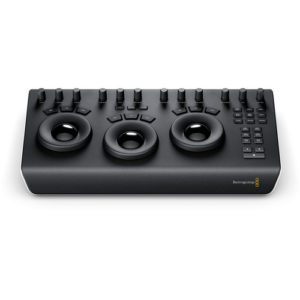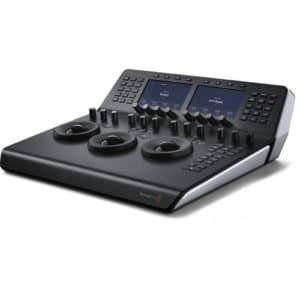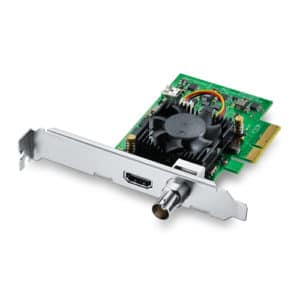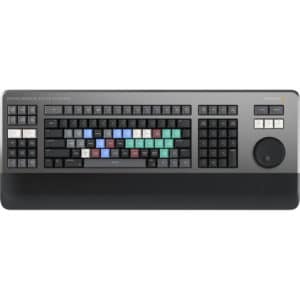
Blackmagic Design DaVinci Resolve 20.2.3 Studio – ACTIVATION CODE
$445.00
-
 ?
?** This activation code is found on a physical card. If in stock, a photo of the activation code will be emailed to you within 1 business day.
Description
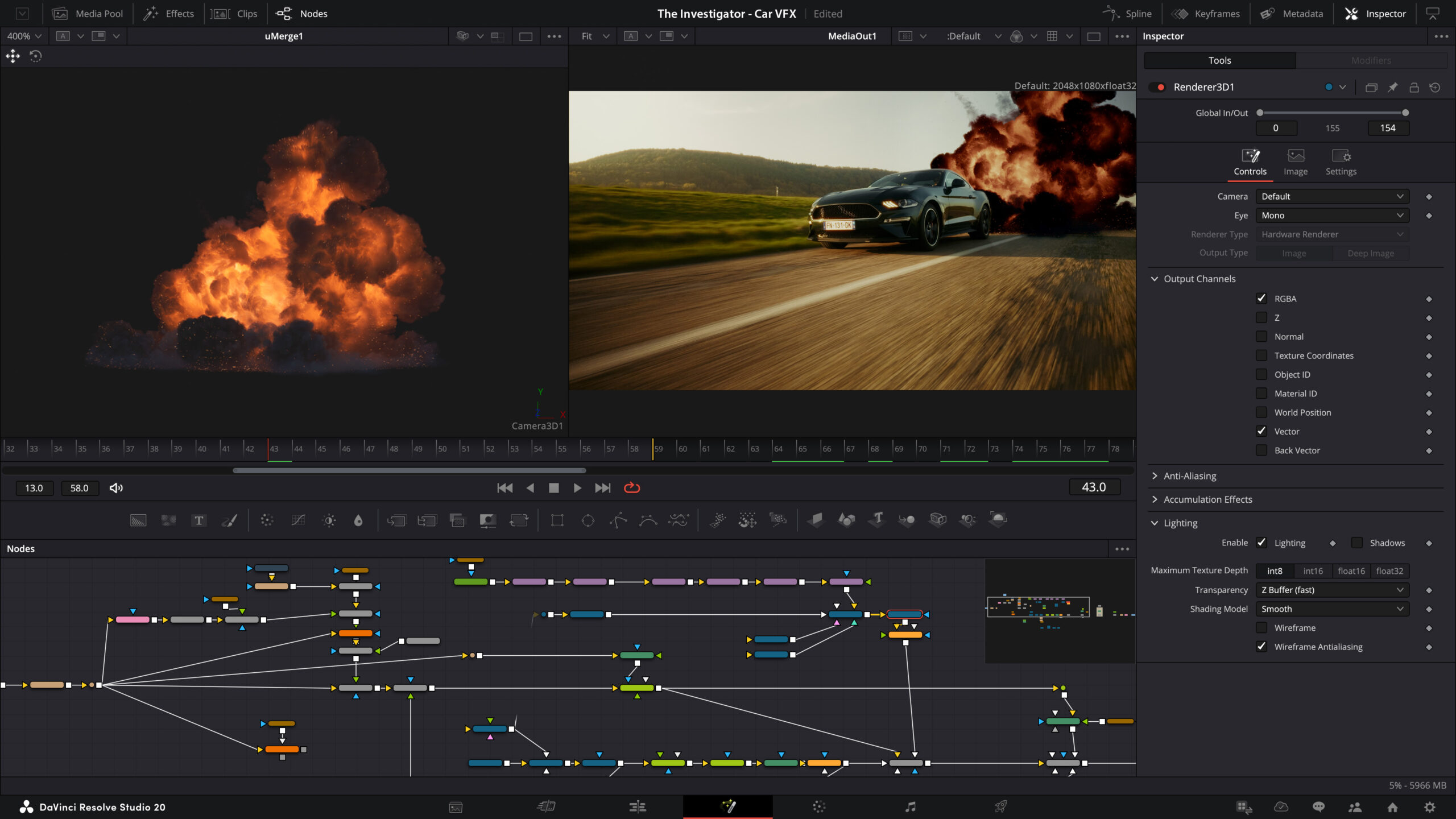
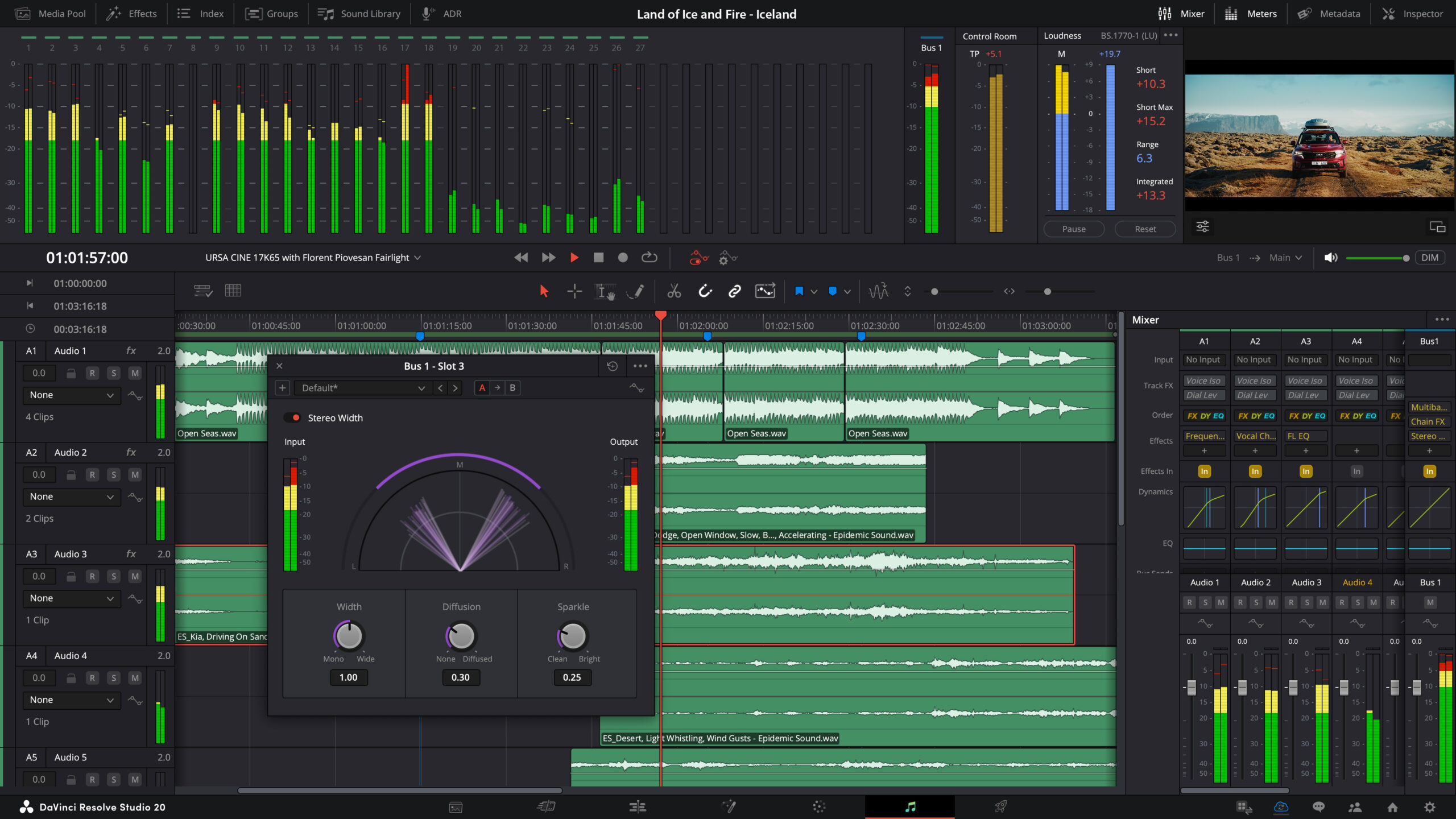
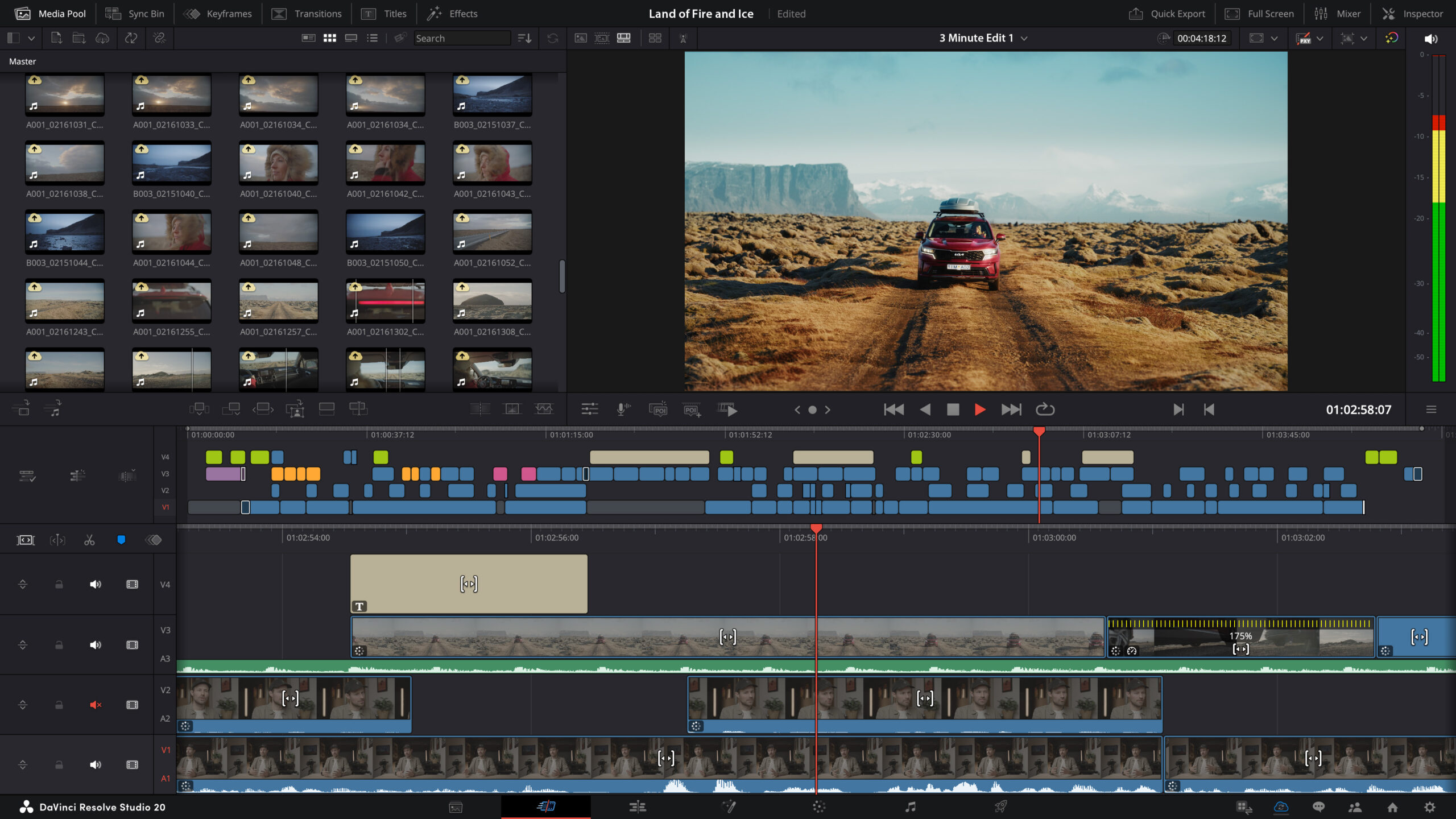
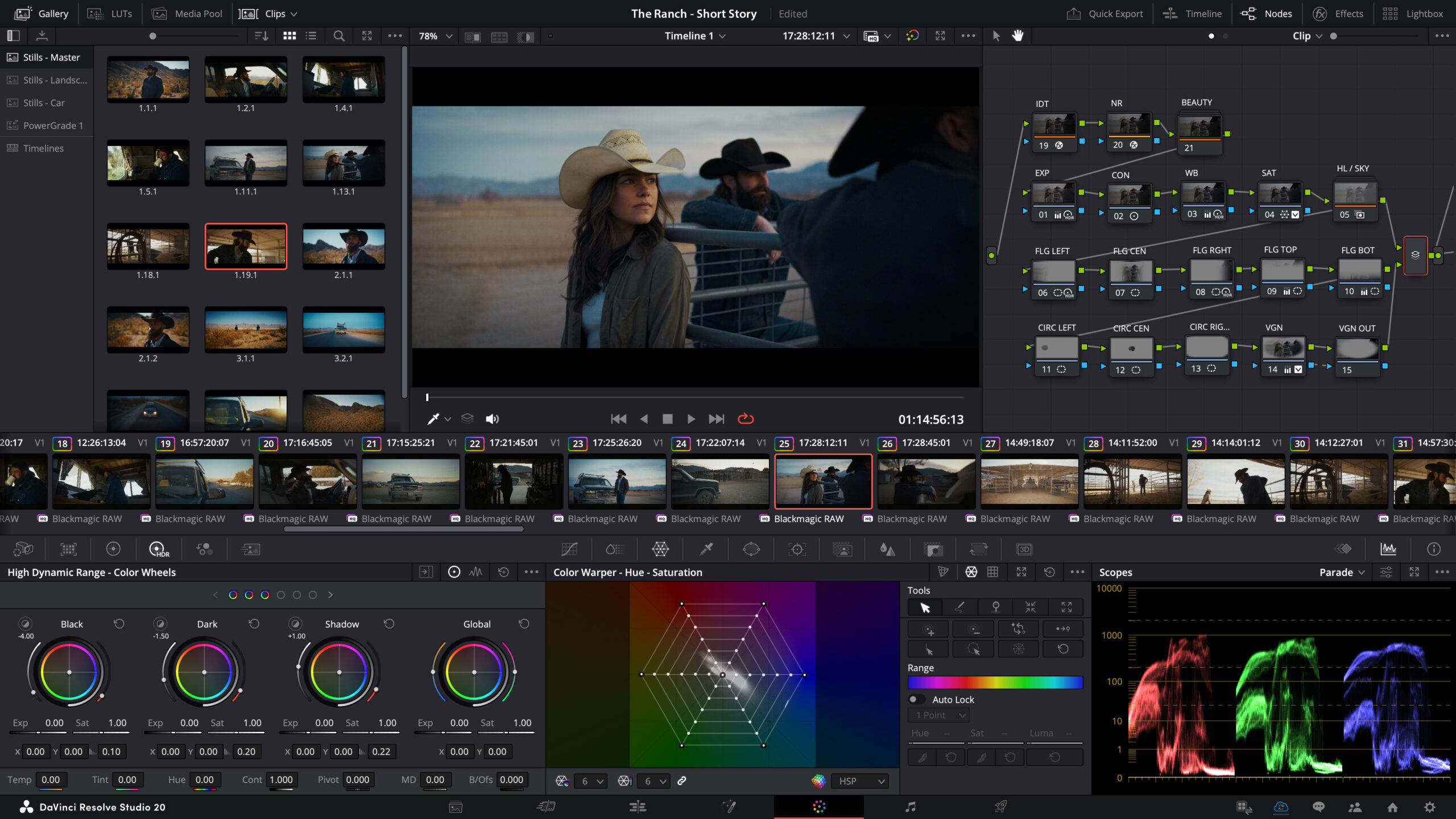
DaVinci Resolve 20.2.3 Studio is the world’s only solution that combines professional 8K editing, colour correction, visual effects and audio post production all in one software tool! You can instantly move between editing, colour, effects, and audio with a single click. DaVinci Resolve Studio is also the only solution designed for multi user collaboration so editors, assistants, colourists, VFX artists and sound designers can all work live on the same project at the same time!
Activation Code Benefits
- Register your activation key to 2 computers. Have the ability to switch between both machines without having to plug in a dongle.
- Free up an extra USB port with the non-dongle version.
- Faster lead time: if in stock, a photo of the activation code will be emailed to you within 1 business day
Software is non-refundable. Contact us if you have any questions before you order!
If you require the USB DONGLE Studio License, you may order it here.
View our full online order returns policy here.
Lead Time
ACTIVATION CODE Studio License: This activation code is found on a physical card. If in stock, a photo of the activation code will be emailed to you within 1 business day.
DaVinci Resolve 20.2.3 Features
- IntelliTrack AI point tracker for tracking and stabilization.
- Support for the DaVinci Resolve Replay Editor.
- Cut page as a media player and playout system.
- New multiview option in the source tape to view time-synced footage.
- Add points of interest and create replays from multiview and timeline.
- Ability to edit timeline content based on source clip transcription.
- New ColorSlice six vector grading palette.
- AI powered UltraNR noise reduction for spatial denoising.
- Node Stack allows management of complex grading workflows.
- New Film Look Creator.
- New Defocus Background isolates foreground with blur.
- Multi Poly tool for easier rotoscoping of complex objects.
- USD enhancements for Material X and advanced volumetric shading.
- Multiple shape toolset enhancements.
- Fully integrated native Ambisonics workflow.
- IntelliTrack powered audio panning to video in Fairlight.
- Music Remixer FX to remix voice, drums, bass, guitar and other sources.
- Dialogue Separator FX to separate dialogue, background or ambience.
- Ducker track FX for auto level management of beds against dialogue.
What’s new in DaVinci Resolve 20.2.3
The following features have been added or updated.
- Support for Blackmagic Raw SDK 5.1.
- Up to 4x faster Magic Mask, Depth Map, Super Scale on Intel GPUs.
- Keyboard customizable action to toggle timeline keyframe tray.
- Pasting spline window tracking data no longer resets spline shape.
- Workflow integration plugins are now persisted across restarts.
- Data burn-in honors limit timecode display to 24 hours.
- Object masks now invalidate for edit and input sizing changes.
- Addressed issue blading all clips under playhead in Fairlight.
- Addressed possible audio playback issue when using Mac trackpad.
- Decode support for WEBM and MKV clips with VP8 video codec.
- Addressed an issue with decoding some MP4 clips.
- Addressed an issue with decoding some MKV FFV1 files.
- Addressed issue loading templates with very large thumbnails.
- Addressed deep image issues with proxy scaling and flipbook.
- Addressed DCTL issues with some ACES 2.0 EOTFs.
- Three-dot option menu action to reset all scopes settings.
- General performance and stability improvements.
Important information regarding project library management
DaVinci Resolve 20.2.3 requires a project library upgrade from previous version of DaVinci Resolve. We strongly recommend that you backup your existing (disk based and PostgreSQL based) project libraries before performing an upgrade.
Pre-Installation Notes
- PostgreSQL 9.0 is the minimum supported version.
- PostgreSQL 13 is the recommended version.
- 10-bit viewers on Windows & Linux needs a capable graphics card and display.
Minimum system requirements for Mac OS
- macOS 14 Sonoma or later.
- 8 GB of system memory or 16 GB when using Fusion.
- For monitoring, Blackmagic Design Desktop Video 12.9 or later.
- Apple Silicon based computer or GPU which supports Metal.
Minimum system requirements for Windows
- Windows 10 Creators Update.
- 16 GB of system memory or 32 GB when using Fusion.
- For monitoring, Blackmagic Design Desktop Video 12.9 or later.
- Integrated GPU or discrete GPU with at least 4 GB of VRAM.
- GPU which supports OpenCL 1.2 or CUDA 12.8.
- AMD/Intel official drivers from your GPU manufacturer.
- NVIDIA Studio driver 570.65 or newer.
Minimum system requirements for Windows for Arm
- Windows 11 for ARM.
- Qualcomm Snapdragon X Elite series processor.
- 16 GB of system memory or 32 GB for 4K or when using Fusion.
Minimum system requirements for Linux
- Rocky Linux 8.6.
- 32 GB of system memory.
- For monitoring, Blackmagic Design Desktop Video 12.9 or later.
- Discrete GPU with at least 4 GB of VRAM.
- GPU which supports OpenCL 1.2 or CUDA 12.8.
- AMD official drivers from your GPU manufacturer.
- NVIDIA Studio driver 570.26 or newer.
Additional Information
Please refer to the latest DaVinci Resolve Configuration Guide for your platform detailing support, including certified driver versions for third party hardware. It is available from www.blackmagicdesign.com/support.
You will also need to download and install the latest Blackmagic Design Desktop Video software for monitoring with your Blackmagic Design video hardware. Desktop Video is available from www.blackmagicdesign.com/support.
Installing DaVinci Resolve Software on MacOS
Double-click the DaVinci Resolve Installer icon and follow the onscreen instructions. To remove DaVinci Resolve from your system, double-click the Uninstall Resolve icon.
Installing DaVinci Resolve Software on Windows
Double-click the DaVinci Resolve Installer icon and follow the onscreen instructions. To remove DaVinci Resolve from your system, go to the Programs and Features control panel, select DaVinci Resolve, click on Uninstall and follow the onscreen prompts.
Migrating Legacy Fairlight projects to DaVinci Resolve on Windows
In order to import legacy Fairlight DR2 projects into DaVinci Resolve, download and install the following utility on your Windows system: downloads.blackmagicdesign.com/DaVinciResolve/Fairlight-Project-Importer.zip After installing the utility, you should see an option to “Import Fairlight Project” in the Fairlight menu in DaVinci Resolve.
Installing DaVinci Resolve Software on Linux
Double-click the DaVinci Resolve installer and follow the onscreen instructions. To remove DaVinci Resolve from your system, select the uninstall option after running the installer.
For DaVinci Resolve 20.2.3, we have taken efforts to keep the project libraries compatible with DaVinci Resolve 19.1.4. While this allows you to access the project library with 19.1.4, individual projects created or opened in 20.2.3 will no longer be accessible in 19.1.4. We recommend a full project library backup as well as individual project backups before opening projects in 20.2.3.